 ›
PortaPack ›
Use Cases › FM Broadcast
›
PortaPack ›
Use Cases › FM Broadcast
FM Broadcast
The easiest first signal — strong stations, instant audio, nothing to decode. Perfect for verifying your setup works.
- Attach the telescopic antenna, extend to ~75 cm.
- Tune to a strong local FM station — check your car radio or phone for frequencies in your area.
- Mode: WFM. Bandwidth: 200 kHz.
- LNA: 16 dB · VGA: 20 dB · Amp: OFF.
- You should hear music within seconds.
1What you'll hear
Clear, stereo-quality music and speech. WFM sounds noticeably better than AM or narrow FM — this is exactly the same signal your car radio receives.
Wherever you are in the world, the FM band (87.5–108 MHz) is densely packed with powerful transmitters. You'll likely receive 5–20 stations without any effort — music, news, talk radio, depending on what's broadcast locally.
FM stations are the strongest signals your HackRF will ever see — multi-kilowatt transmitters with 100+ km range. If you can't receive FM, something is wrong with your setup (wrong mode, USB connection, driver issue). It's the definitive sanity check before tackling weaker signals like airband or ADS-B.
2Legal context
FM broadcast is completely unambiguous — receive all you want, no grey area. These signals are intentionally transmitted to the public and receiving them is legal everywhere.
Transmit on FM broadcast frequencies (87.5–108 MHz) without a license. Unlicensed FM transmitters are illegal in virtually every country and actively tracked by regulators. This restriction applies only to transmitting — receiving is always fine.
3Antenna choice
FM broadcast is centred around 100 MHz. Quarter-wave formula: 7500 ÷ 100 = 75 cm.
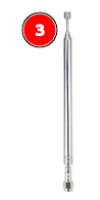
Telescopic antenna — extended to 75 cm
Range: 40 MHz – 6 GHz · Tunable
Best choice for FM. Extend the elements until the total length is ~75 cm. FM signals are so strong that even a slightly wrong length still works fine — don't worry about being exact to the millimetre.
Strong local FM transmitters can flood the HackRF's front end and bleed into other bands. If you later use the HackRF for airband or other weak signals, lower LNA or shorten the antenna. For FM itself, this isn't a problem — the signal is supposed to be strong.
4Workflows
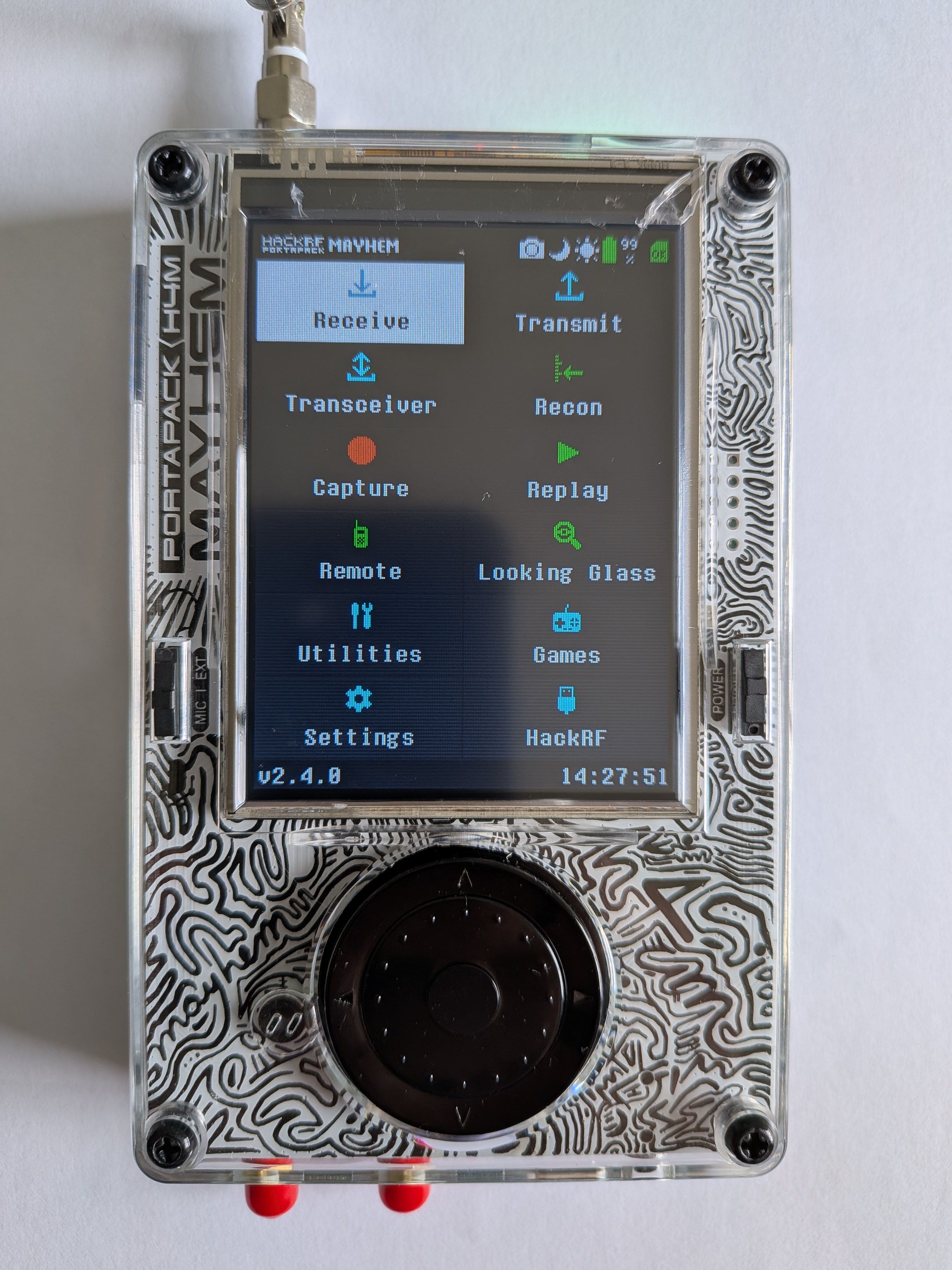
From the Mayhem home screen, select Receive.
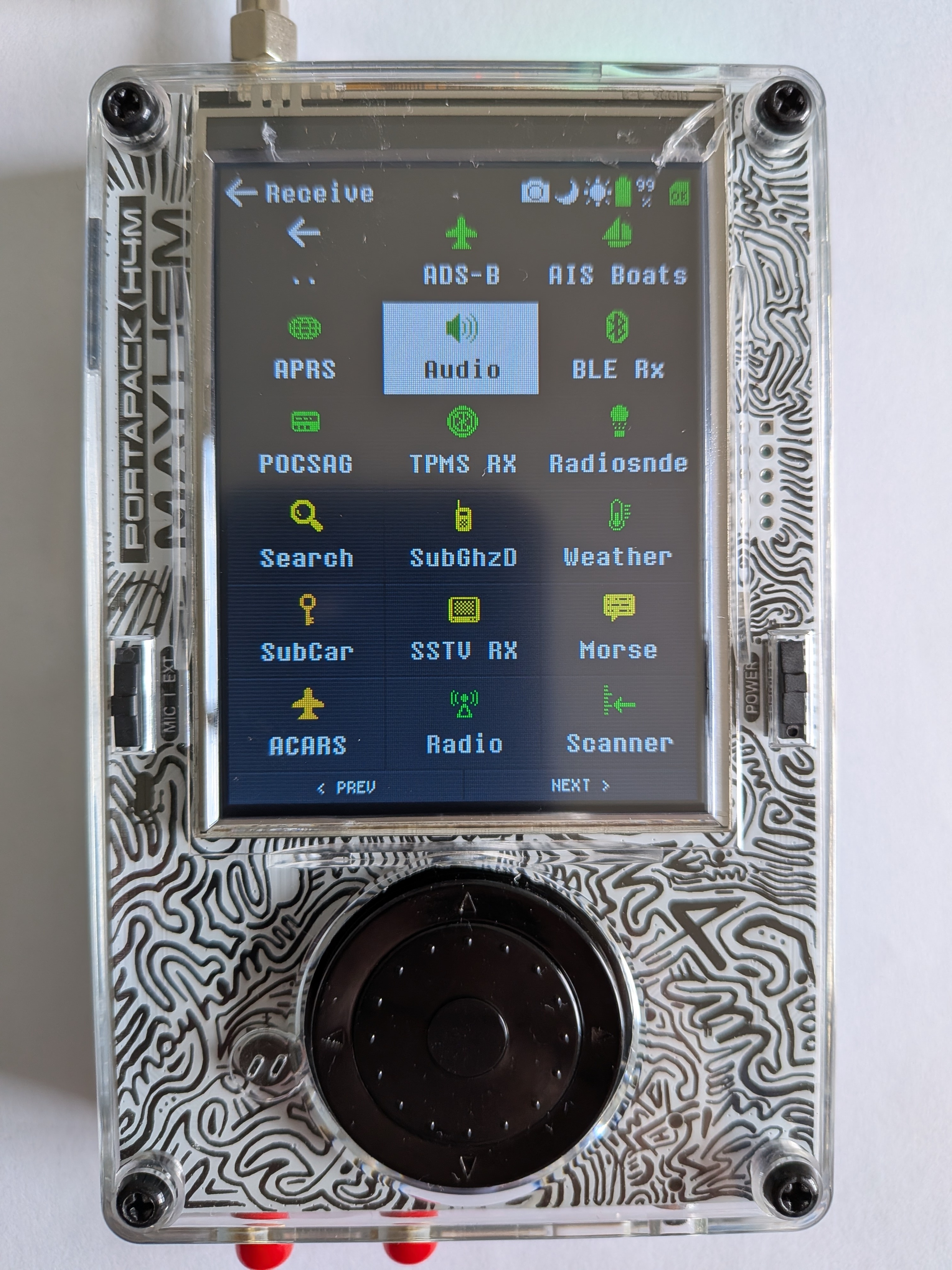
In the Receive submenu, select Audio.
Mode: WFM · Bandwidth: 200k · Step: 100k. Use the encoder wheel to tune to a strong local station. You should see a signal in the waterfall and hear audio immediately.
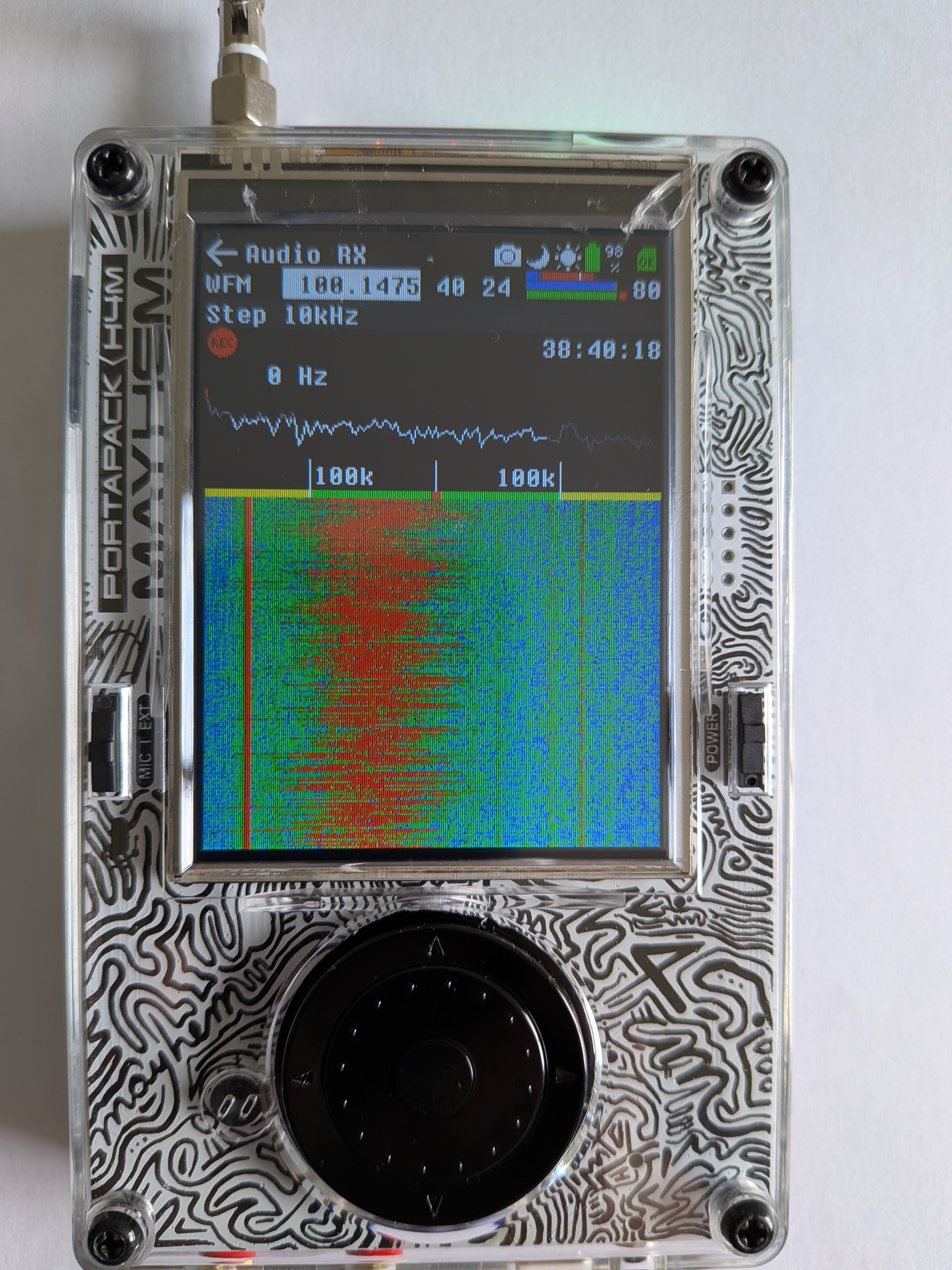
LNA: 16 dB · VGA: 20 dB · Amp: OFF
If distorted or stations bleed together → lower LNA to 8. If too weak → raise VGA to 32.
3.5mm jack on the side of the device. Volume via the encoder wheel when not adjusting frequency.
SDR++ installed, HackRF drivers present. Verify with hackrf_info in terminal — you should see the device listed before opening SDR++.
Source dropdown (top left): select HackRF One. Click ▶ Play. The waterfall appears immediately.
Tune to around 100 MHz. Sample rate: 20 MHz — wide enough to see the entire FM band at once. Set LNA: 24 dB · VGA: 20 dB · Amp: OFF · IQ Correction: ON.
You'll immediately see multiple bright vertical stripes — each one is an FM station.
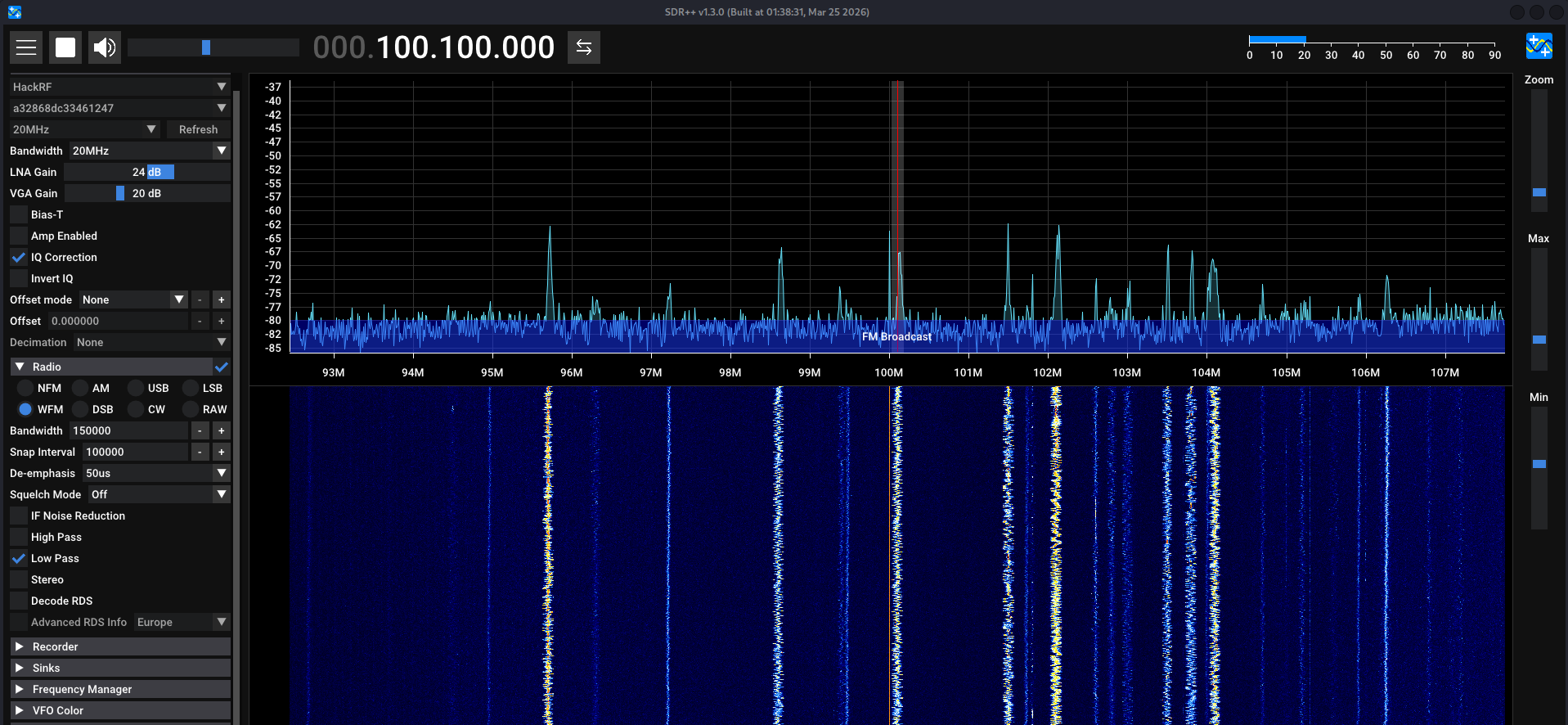
Radio module (left panel): select WFM · Bandwidth: 200k · De-emphasis: 50µs (Europe) or 75µs (US/Japan). Click any bright stripe in the waterfall — audio plays immediately.
Drag Squelch all the way down or disable it. FM is strong enough that squelch just gets in the way.
5Recommendation
The waterfall view in SDR++ is the real payoff here — you can see the entire FM band at once. Every station appears as a bright coloured stripe, clearly separated. You click a stripe and you're on that station. It immediately makes spectrum visible in a way that's hard to convey in text.
The PortaPack standalone is fine too, but you browse blind — tune until you hit something. For FM as a learning experience, the laptop view wins.
6Finding stations in your area
FM frequencies are assigned locally — there's no universal list. The easiest way to find what's transmitting near you:
- Check your car radio or phone — scan it and note which frequencies have strong signals. Those are your targets.
- Scan the waterfall in SDR++ — set sample rate to 10–20 MHz and look for the wide bright blobs across 87.5–108 MHz. Each blob is a station.
- Use a local FM database — sites like fmlist.eu or radio-locator.com list stations by country and region.
Europe and most of the world uses 100 kHz channel spacing (e.g. 98.0, 98.1, 98.2 MHz). The US uses 200 kHz spacing (88.1, 88.3, 88.5 MHz). Set your tuning step accordingly to land cleanly on stations.
7What it looks like in the waterfall
FM stations are the most visually distinct signals you'll see. Each station appears as a wide, bright vertical stripe — much wider than other signals.
Key visual indicators:
- Width: FM blobs are ~200 kHz wide. This is what distinguishes WFM from NFM (narrow spikes) or AM (medium width).
- Colour: Yellow/orange = strong signal. Blue/dark = noise floor.
- DC spike: Thin bright line at exact centre frequency. Normal HackRF behaviour — not a real signal.
- Stereo pilot tone: At 19 kHz above carrier — not visible at this scale but causes spectrum "skirts" if bandwidth is zoomed in.
8Troubleshooting
I hear buzzing / thin robotic sound instead of music
Almost certainly wrong mode. You're likely in NFM (12.5 kHz) instead of WFM (200 kHz). NFM is too narrow to decode FM broadcast — it cuts the audio badly.
Fix: Switch mode explicitly to WFM. Bandwidth must be 150–200 kHz, not 12.5k.
Audio sounds slightly "off" or too bright/harsh
Wrong de-emphasis setting. Most of the world uses 50µs; the US and Japan use 75µs. If the setting doesn't match your region, high frequencies sound unnatural.
Fix: In the Radio module in SDR++, try both 50µs and 75µs and pick whichever sounds more natural on a talk radio station.
FM stations bleed into each other / everything sounds garbled
LNA gain too high, causing front-end overload. HackRF has limited filtering — strong FM signals can spill everywhere.
Fix: Lower LNA to 8 dB or even 0 dB. FM is strong enough to receive with minimal gain. You can also shorten the antenna slightly.
Bright vertical line in the middle of the waterfall
This is the DC spike — completely normal with HackRF. It's LO leakage, not a real signal.
Fix: Enable IQ Correction in SDR++ source settings. Or tune your centre frequency slightly off (e.g., 99 MHz instead of 100 MHz — the stations are still visible, just shifted in the waterfall).
No audio at all — silence
Check in this order:
1. Is the HackRF recognised? Run hackrf_info in terminal. No output = driver or USB problem.
2. Is SDR++ running (▶ Play active)? A greyed-out play button means the source is not streaming.
3. Is your VFO on a station? Click directly on a bright blob in the waterfall, not between stations.
4. Is audio output set correctly? SDR++ → Audio → check the output device matches your speakers/headphones.
Only getting one or two stations — I know there are more
Sample rate is too low, so your waterfall view is too narrow. At 2 MHz sample rate you only see 2 MHz of spectrum at once.
Fix: Increase sample rate to 10 MHz or 20 MHz in the source settings. Now you see a wider slice and more stations simultaneously.
9Next steps
FM works? Good — your HackRF is confirmed healthy. Here's where to go next:
- Session 02 — Airband: Same band area (above FM), but AM mode and live aircraft chatter. Slightly harder, much more exciting.
- Zoom into a station: In SDR++, zoom the waterfall into a single 200 kHz station. You'll see the stereo pilot at 19 kHz and the RDS subcarrier at 57 kHz — subcarriers embedded in the FM signal carrying digital metadata.
- Try an RDS decoder plugin: SDR++ has an RDS module. Enable it on a strong station and you'll decode the station name, song title, and more as text.